If your smartphone has a cracked screen, weak battery, charging problem, damaged camera, water…
Read More

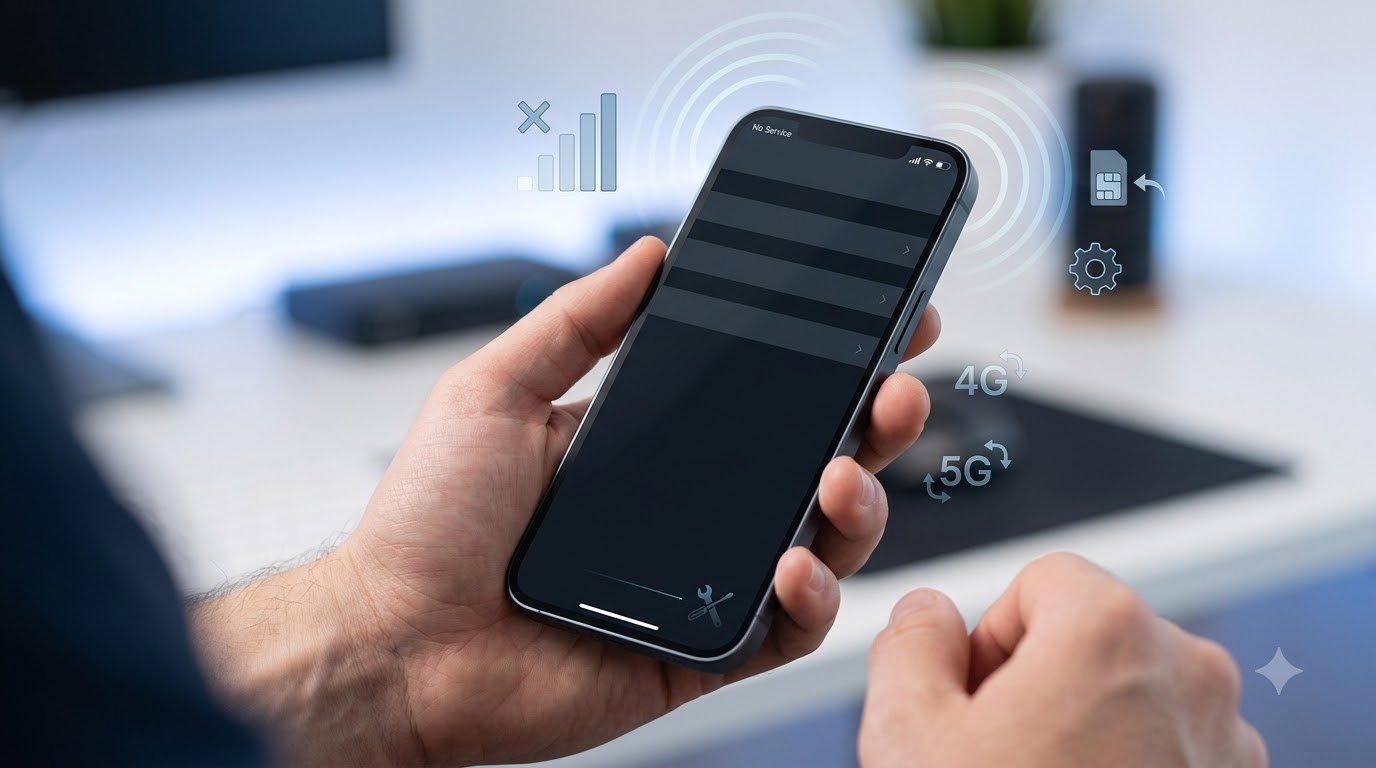
A mobile signal problem can make everyday phone use frustrating. Weak signal may cause dropped calls, failed messages, slow mobile data, or a “No Service” message. However, poor signal does not always mean your phone is damaged. The cause may be something simple, such as poor network coverage or Airplane Mode, or it could involve the SIM card, network settings, software, or internal hardware.
This guide explains the common causes of mobile signal problems and provides safe troubleshooting steps for both Android phones and iPhones. It also explains how to determine whether the problem is related to your phone, SIM card, location, or mobile network provider.
What Is a Mobile Signal Problem?
A mobile signal problem occurs when your phone has difficulty connecting reliably to a cellular network. Signal strength affects several important functions, including:
- Voice calls
- SMS messages
- Mobile data
- Internet connectivity
- Call stability
- Network registration
Signal strength can change depending on your location, building structure, network coverage, congestion, device capabilities, and the network technology being used.
For example, you may have a good signal outdoors but a weak signal inside a basement or building with thick concrete walls. Similarly, a crowded area can sometimes experience reduced network performance because many users are connecting to the same network resources.
It is also important to remember that the number of signal bars is only a general indication. Signal bars do not always provide a complete picture of actual network performance.
Common Signs of a Mobile Signal Problem
A phone experiencing network connectivity issues may show one or more of these symptoms:
- One or no signal bars
- “No Service” message
- “Emergency Calls Only”
- Frequent call drops
- Calls failing to connect
- Poor voice quality
- SMS messages failing to send
- Very slow mobile data
- Mobile internet disconnecting
- Signal disappearing indoors
- Signal frequently changing between network technologies
- Mobile network connection becoming unstable
If these problems happen only in one particular location, coverage may be the main cause. If they happen everywhere, further troubleshooting may be necessary.
Common Causes of Mobile Signal Problems
Poor Network Coverage
One of the most common reasons for a weak mobile signal is poor network coverage.
Signal can be weaker in locations such as:
- Remote or rural areas
- Basements
- Underground spaces
- Elevators
- Buildings with thick concrete walls
- Areas surrounded by large structures
- Locations far from available network infrastructure
Try moving to an open area or a different location to see whether the signal improves. If the phone works normally elsewhere, the problem may be related to local coverage rather than the device itself.
Temporary Network Outage
A mobile network provider may occasionally experience a temporary outage or maintenance issue. This can affect calls, SMS, or mobile data in a particular area.
A useful way to check is to ask someone nearby who uses the same provider whether they are experiencing a similar problem. You can also check the provider’s official service-status information when available.
SIM Card Problems
A SIM card can also cause connectivity problems.
Possible issues include:
- SIM not inserted correctly
- Damaged SIM
- Old or malfunctioning SIM
- SIM not detected by the phone
- Poor contact between the SIM and device
If your phone displays a message such as “No SIM” or suddenly loses network registration, checking the SIM is a sensible troubleshooting step.
Incorrect Network Settings
Incorrect cellular settings can sometimes prevent a phone from connecting properly to the available network.
For example, manually selecting an unavailable network or choosing an unsuitable network mode may result in connectivity problems.
For most users, automatic network operator selection is a practical option unless there is a specific reason to manually select a network.
Airplane Mode
Airplane Mode disables cellular connectivity. It is easy to turn it on accidentally, particularly through the phone’s quick settings or control center.
Check that Airplane Mode is disabled before investigating more complicated causes.
Software Problems
Temporary software bugs or outdated system software can sometimes affect cellular connectivity.
Keeping your phone’s operating system updated can help address known software problems and maintain compatibility with network-related features.
Network Congestion
Mobile network performance can vary when many users are connected in the same area.
Large events, busy city locations, transport hubs, or other heavily populated areas can sometimes experience reduced network performance. This does not necessarily mean there is a problem with your phone.
Physical Damage
If the signal problem started immediately after the phone was dropped or exposed to liquid, physical damage may be involved.
Possible hardware-related causes can include damage to:
- Internal antenna components
- Antenna connectors
- Cellular components
- Internal connections
Hardware problems should generally be inspected by a qualified technician rather than repaired at home.
How to Fix Mobile Signal Problems
Try the following troubleshooting steps in order.
Step 1: Check Airplane Mode
Open your phone’s quick settings or control center and confirm that Airplane Mode is turned off.
You can also turn Airplane Mode on briefly and then turn it off again. This can make the phone reconnect to the cellular network.
Step 2: Restart the Phone
Restarting the phone can clear temporary software problems and allow the device to establish a fresh connection with the mobile network.
After restarting, wait for the phone to complete network registration before testing calls or mobile data.
Step 3: Check Your Location
Move to an open area and check the signal again.
You can try:
- Moving outdoors
- Going near a window
- Leaving a basement
- Moving away from thick walls
- Testing the phone in another nearby location
If the signal improves significantly, coverage or building interference may be contributing to the problem.
Step 4: Remove and Reinsert the SIM
If your phone uses a physical SIM, turn the device off if recommended by the manufacturer, remove the SIM carefully, and check that it is positioned correctly.
Do not force the SIM tray or insert metal objects into the SIM slot. If the SIM appears damaged, contact your mobile provider about a replacement.
For eSIM users, the troubleshooting process can be different, so check the device and carrier instructions before making changes.
Step 5: Check Network Selection
Look for the mobile network or network operator settings on your phone.
Automatic network selection is generally appropriate for most users. If manual selection is enabled, the phone may have difficulty connecting if the selected network is unavailable in the current location.
Step 6: Check Preferred Network Type
Depending on your phone and provider, you may see network options such as:
- 5G
- 4G/LTE
- 3G
- 2G
Available options depend on the device, carrier, location, and network infrastructure. There is no single network mode that is universally best for every situation.
If you are experiencing connectivity problems, check whether changing the available preferred network setting resolves the issue.
Step 7: Install Software Updates
Check whether a system update is available for your phone.
Updates may contain fixes for software problems affecting network connectivity. Make sure your phone has sufficient battery and storage before installing a major update.
Step 8: Reset Network Settings
If other troubleshooting steps do not work, consider resetting the phone’s network settings.
A network reset may remove:
- Saved Wi-Fi networks
- Bluetooth pairings
- Certain cellular settings
- Other network-related configurations
Because this information may be removed, make sure you understand what your phone will reset before proceeding.
A factory reset should not normally be the first step for a mobile signal problem.
Mobile Signal Problem on Android Phones
Android phones from Samsung, Google Pixel, Xiaomi, OnePlus, Motorola, Oppo, Vivo, Realme, and other manufacturers may use different menu names and layouts.
However, the general troubleshooting process is similar.
Start by opening Settings and looking for options related to:
- SIM cards
- Mobile network
- Cellular network
- Network operator
- Preferred network type
- Network settings
You can then check whether the SIM is detected, confirm that mobile connectivity is enabled, and review network operator selection.
If necessary, restart the phone and install available system updates. You can also use the network reset option if simpler troubleshooting steps have not resolved the issue.
Because Android interfaces vary between manufacturers and software versions, avoid following instructions that assume every Android phone has identical menus.
Mobile Signal Problem on iPhone
If you have an iPhone, start with basic checks such as:
- Turn Airplane Mode off
- Restart the iPhone
- Check cellular settings
- Check for carrier settings updates
- Install available iOS updates
- Check the physical SIM if your iPhone uses one
- Review cellular network settings
- Reset network settings if necessary
Carrier settings updates can improve compatibility between the iPhone and the mobile network. iOS updates may also include connectivity-related fixes.
The exact options available depend on the iPhone model, iOS version, carrier, and whether the phone uses a physical SIM or eSIM.
Why Does My Phone Have Signal but No Internet?
Having signal bars does not necessarily mean that mobile data is working correctly.
You may have cellular signal but still be unable to access the internet because of:
- Mobile data being disabled
- Incorrect APN settings
- Exhausted data allowance
- Network congestion
- Carrier restrictions
- Temporary network problems
- Poor data coverage
First, confirm that mobile data is enabled. Then check whether other internet services work.
If calls and SMS work but mobile internet does not, the problem may be related specifically to mobile data configuration or your carrier’s data service rather than the phone’s overall cellular connection.
Why Does My Phone Say “No Service”?
A “No Service” message means the phone is not currently connected to an available cellular service.
Possible causes include:
- Poor network coverage
- Temporary network outage
- SIM problems
- Airplane Mode
- Incorrect network settings
- Account or carrier-related issues
- Software problems
- Hardware failure
Start with Airplane Mode, restart the phone, and check the SIM if applicable. Then test the device in another location.
If another phone using the same provider also shows no service in the same location, a local network problem may be involved.
Why Does My Phone Keep Losing Signal?
A phone that repeatedly loses signal may be experiencing a coverage, SIM, software, network, or hardware issue.
Common possibilities include:
- Weak or changing coverage
- Moving between coverage areas
- Network congestion
- SIM problems
- Incorrect network settings
- Software issues
- Antenna or internal hardware damage
Pay attention to where the problem happens.
If the signal drops only inside a particular building, coverage or building conditions may be responsible. If the signal drops everywhere, including locations where other compatible phones have good service, the device or SIM may need further investigation.
How to Tell if the Problem Is Your Phone or the Network
A few safe comparison tests can help narrow down the cause.
Test Another Phone
Check whether another phone using the same carrier has a similar signal problem in the same location.
If both phones have poor service, the network or local coverage may be involved.
Test the SIM in Another Compatible Phone
If you use a physical SIM, you can test it in another compatible device where appropriate.
If the SIM has the same problem in another phone, contact the carrier for assistance.
If the SIM works normally elsewhere but your phone continues to have connectivity problems, the device may require further troubleshooting.
Test Your Phone in Another Location
Take the phone to a location where you normally expect good network coverage.
This can help determine whether the problem is location-specific.
Check for a Network Outage
Look for official service information from your network provider or compare service with other users on the same network.
These simple tests can help separate network, SIM, location, and device-related problems.
Can a Mobile Signal Problem Be Repaired?
Whether a mobile signal problem can be repaired depends on its underlying cause.
Software and Network-Related Problems
These may sometimes be resolved through:
- Changing network settings
- Installing software updates
- Resetting network settings
- Replacing a faulty SIM
- Contacting the network provider
These issues do not necessarily require physical phone repair.
Hardware-Related Problems
If the phone has physical damage, professional inspection may be necessary.
A technician may check for:
- Damaged antenna components
- Internal connector problems
- Liquid damage
- Impact damage
- Cellular component failure
Not every signal problem requires hardware repair, so diagnosis should come before replacing internal components.
When Should You Take Your Phone for Repair?
Consider professional inspection when:
- Signal disappeared after a significant drop
- The phone was exposed to liquid
- A SIM works normally in another phone but not in your device
- The phone constantly displays “No Service”
- Multiple troubleshooting steps have failed
- Your phone has poor signal in locations where other compatible phones have good coverage
- Other cellular hardware symptoms are present
If the phone shows signs of serious physical damage, avoid opening it yourself unless you have the appropriate technical knowledge and equipment.
How Much Does Mobile Signal Repair Cost?
There is no universal price for mobile signal repair.
The final cost can depend on:
- Phone model
- Type of damage
- Required replacement component
- Parts availability
- Technician labor
- Authorized or independent repair provider
- Additional internal damage
For example, a simple SIM replacement may cost considerably less than repairing an internal cellular component. A technician should inspect the device before providing a reliable repair estimate.
How to Prevent Mobile Signal Problems
While network coverage is outside your control, several practices can reduce avoidable device-related problems:
- Protect your phone from drops and impacts
- Keep the device away from liquid exposure
- Install software updates regularly
- Use a properly functioning SIM
- Avoid unauthorized internal repairs
- Keep SIM or eSIM information up to date
- Use network settings appropriate for your carrier
- Pay attention to recurring signal issues
- Have physical damage professionally inspected
Avoid modifying antennas or opening the phone without appropriate expertise.
Mobile Signal Problem Troubleshooting Table
| Problem | Possible Cause | What to Try |
|---|---|---|
| No signal bars | Poor coverage or network issue | Move to an open area |
| No Service | Network, SIM, or settings issue | Restart and check the SIM |
| Signal keeps dropping | Coverage or hardware issue | Test another location |
| Calls keep dropping | Weak signal or network congestion | Move to better coverage |
| Signal but no internet | Mobile data or settings issue | Check mobile data and network settings |
| SIM not detected | SIM or device issue | Reinsert or test the SIM |
| Signal stopped after a drop | Possible hardware damage | Arrange professional inspection |
| Signal stopped after liquid exposure | Possible internal damage | Seek professional inspection |
Safety Guidelines for Mobile Signal Troubleshooting
Most basic network troubleshooting is safe, but physical repairs require more care.
Do not:
- Open the phone without appropriate expertise
- Bend or modify the antenna
- Insert metal objects into the SIM slot
- Apply liquids or chemicals to internal components
- Attempt board-level repairs without proper tools
- Continue using a device showing dangerous signs such as severe overheating or battery damage
Start with software, settings, SIM, and location checks before considering hardware repair.
Frequently Asked Questions
Why is my mobile signal so weak?
Weak signal can result from poor coverage, building structures, network congestion, SIM problems, network settings, software issues, or hardware damage. Testing the phone in another location can help identify the cause.
How do I fix a mobile signal problem?
Start by checking Airplane Mode, restarting the phone, moving to an area with better coverage, checking the SIM, reviewing network settings, installing updates, and resetting network settings if necessary.
Why does my phone say No Service?
“No Service” can be caused by poor coverage, a network outage, SIM problems, incorrect settings, software issues, account-related problems, or hardware failure.
Why does my phone keep losing signal?
Repeated signal loss can be related to changing coverage, network congestion, SIM problems, software issues, incorrect settings, or damaged cellular hardware.
Why do I have signal but no mobile internet?
Signal availability and mobile data connectivity are not exactly the same. Check whether mobile data is enabled and review data settings, APN configuration, carrier restrictions, and your available data allowance.
Can a SIM card cause weak signal?
Yes. A damaged, incorrectly inserted, old, or malfunctioning SIM can cause cellular connectivity problems. Testing the SIM in another compatible phone can help identify a SIM-related issue.
Can a phone antenna be damaged?
Yes. A phone’s internal antenna or related components can potentially be damaged by impact, liquid exposure, or other physical problems. Professional inspection is recommended if the issue began after physical damage.
How do I reset my phone’s network settings?
The exact process varies by device. Look for a Reset Network Settings option in your phone’s Settings. Remember that this can remove saved Wi-Fi networks, Bluetooth pairings, and certain network configurations.
Why does my phone have poor signal indoors?
Walls, concrete structures, underground locations, and the building’s design can affect cellular signal. Compare the signal indoors and outdoors to determine whether the problem is location-specific.
When does a mobile signal problem require repair?
Professional inspection may be appropriate when the problem persists after basic troubleshooting, especially if the phone was dropped, exposed to liquid, or has poor signal everywhere while another compatible phone has good service.
Conclusion
A mobile signal problem can have many causes, ranging from poor network coverage and temporary outages to SIM issues, incorrect settings, software problems, and hardware damage.
Start with simple and safe checks: turn Airplane Mode off, restart the phone, test another location, check the SIM, review network settings, and install available updates. If the problem continues, compare the phone with another device or test the SIM in another compatible phone to determine whether the issue follows the phone, SIM, or location.
Persistent problems—particularly those that begin after a drop or liquid exposure—may require professional inspection. For more practical smartphone troubleshooting, repair guidance, and technology information, Galaxmial.com provides helpful resources for everyday device problems.

Mobile Repairing Shop

HCB lithium battery
Lithium batteries are increasingly used in factories, warehouses, renewable energy systems, industrial vehicles, backup…
Read More
Uncategorized
Not every smartphone problem means you need to visit a repair shop. Many common…
Read More