If your smartphone has a cracked screen, weak battery, charging problem, damaged camera, water…
Read More

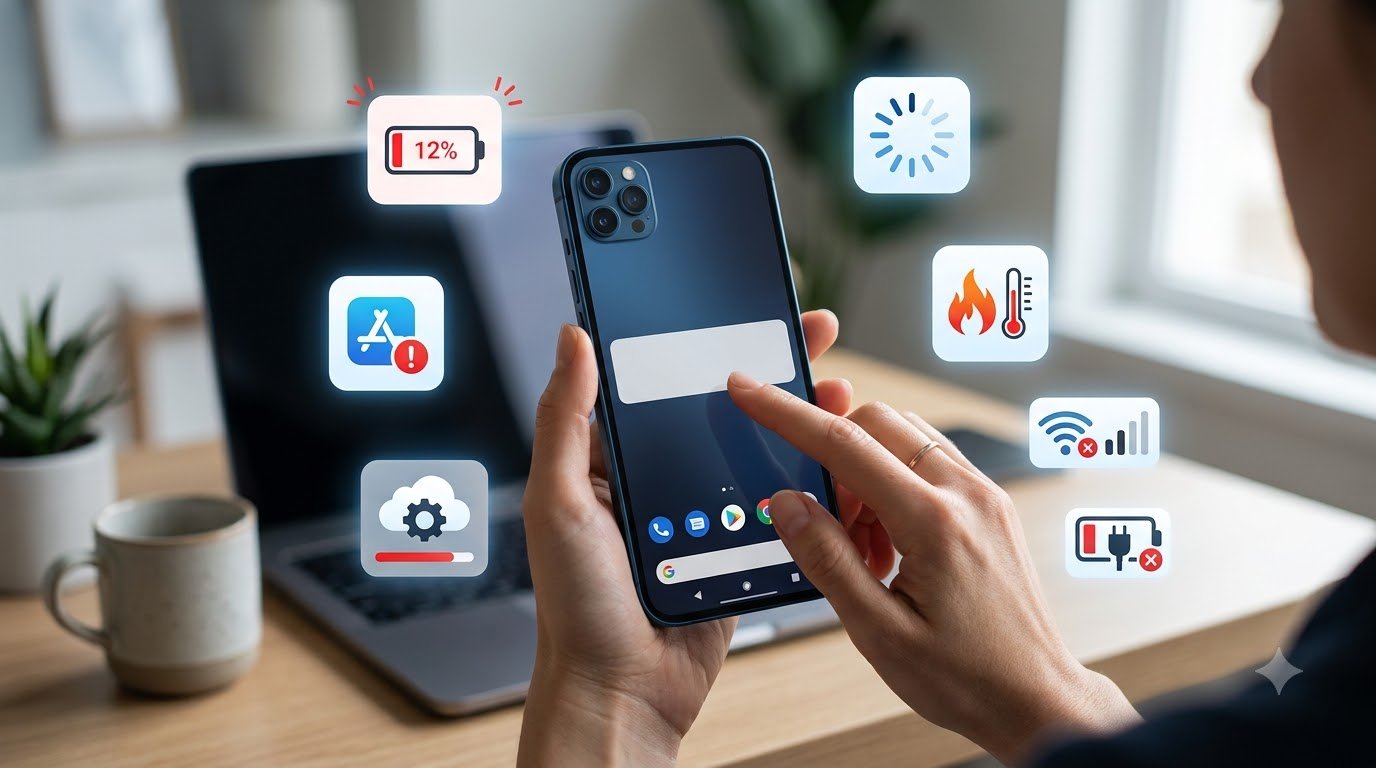
Smartphones have become an essential part of everyday life. We use them for communication, work, entertainment, banking, navigation, photography, and much more. However, like any electronic device, smartphones can develop problems over time.
The good news is that many common smartphone problems are caused by simple issues such as low storage, outdated software, excessive background activity, weak network connections, or problematic apps. In many cases, you can troubleshoot these issues yourself without immediately taking your phone to a repair shop.
This guide covers common phone problems and practical solutions that Android and iPhone users can try safely. It also explains when a problem may indicate hardware damage and require professional assistance.
Quick Troubleshooting Table
| Smartphone Problem | Common Cause | First Thing to Try |
|---|---|---|
| Battery draining fast | Background apps, high brightness, aging battery | Check battery usage and reduce background activity |
| Phone not charging | Damaged cable, charger, port, or software issue | Try another compatible cable and charger |
| Smartphone overheating | Heavy apps, gaming, charging, hot environment | Stop demanding apps and let the phone cool |
| Phone running slow | Low storage, too many apps, outdated software | Free storage and restart the phone |
| Apps crashing | App bugs, outdated app, low storage | Update the app and restart the phone |
| Poor Wi-Fi/mobile data | Network issue, settings, weak signal | Toggle connection and restart the device |
| Screen not responding | Software freeze, physical or liquid damage | Restart the phone and check for damage |
| Bluetooth not connecting | Pairing problem, compatibility, software issue | Forget the device and pair it again |
| Storage full | Photos, videos, apps, downloads | Delete unnecessary files and apps |
| Random shutdowns | Battery, software, overheating, hardware | Update software and monitor when it happens |
| Poor camera quality | Dirty lens, poor lighting, settings | Clean the lens and check camera settings |
| Low or no sound | Silent mode, Bluetooth, blocked speaker | Check volume, Bluetooth, and speaker openings |
1. Phone Battery Draining Too Quickly
A battery that loses charge much faster than expected is one of the most common smartphone problems. Battery consumption can increase because of background apps, high screen brightness, location services, poor network coverage, or an aging battery.
Common causes
- Apps running in the background
- High screen brightness
- Constant location or GPS usage
- Mobile data or Bluetooth being used unnecessarily
- Poor cellular signal
- High-performance games and applications
- An aging or damaged battery
- Software or app problems
How to fix it
Step 1: Check battery usage
Open your phone’s battery settings and look for applications consuming unusually high amounts of power.
If an app is using excessive battery without a clear reason, update it or consider uninstalling it.
Step 2: Reduce screen brightness
Use automatic or adaptive brightness where available. The display is often one of the largest sources of battery consumption.
Step 3: Reduce unnecessary background activity
Restrict background activity for apps that you do not need constantly running.
Step 4: Turn off unnecessary connections
When they are not needed, consider disabling features such as Bluetooth, GPS, or mobile hotspot.
Step 5: Check the battery condition
Modern smartphones may provide battery-health information. If the battery has significantly degraded or the phone shuts down unexpectedly, a battery replacement may be worth discussing with an authorized or qualified repair professional.
Avoid
Do not attempt to open the phone or remove a damaged battery yourself.
2. Smartphone Charging Slowly or Not Charging
If your phone is not charging or takes much longer than usual to charge, the problem may involve the charger, cable, charging port, power source, software, or battery.
What to try
- Disconnect and reconnect the charger.
- Try another compatible charging cable.
- Try another compatible power adapter.
- Test a different wall outlet.
- Check whether the charging port contains visible dust or debris.
- If appropriate for your device, carefully clean the exterior of the port using a safe, non-metallic method.
- Restart the phone and try charging again.
- Check whether the phone displays any charging notification.
Avoid inserting sharp metal objects into the charging port because they can damage delicate components.
When it may be a hardware problem
Professional inspection may be necessary if:
- The cable only works at a particular angle.
- The charging port appears physically damaged.
- The phone becomes unusually hot while charging.
- The battery is swollen.
- The phone repeatedly stops charging.
- Multiple known-good chargers fail to work.
3. Phone Overheating
Smartphones naturally become warm during demanding activities, but excessive or persistent heat can indicate a problem.
Common reasons for overheating
- Long gaming sessions
- Video recording
- Navigation or GPS usage
- Video calls
- Multiple demanding apps running simultaneously
- Charging while performing heavy tasks
- Direct exposure to sunlight or high temperatures
- Software or application problems
How to reduce overheating
- Close unnecessary demanding applications.
- Stop gaming or intensive activities temporarily.
- Remove the phone from direct sunlight.
- Disconnect it from charging if it becomes unusually hot.
- Allow it to cool naturally.
- Install available software and app updates.
- Restart the phone if overheating appears to be related to a software process.
What to avoid
Do not put a hot smartphone in a refrigerator or freezer. Rapid temperature changes can cause condensation and potentially damage electronic components.
If the phone becomes extremely hot, repeatedly overheats during normal use, emits a burning smell, or shows signs of battery damage, stop using it and seek professional assistance.
4. Phone Running Slowly or Lagging
A phone running slow can make even simple tasks frustrating. Older devices may naturally become slower over time, but performance problems can also result from low storage, background processes, outdated software, or problematic applications.
How to make a slow phone faster
1. Check available storage
Very limited free storage can affect normal device operation. Remove unnecessary downloads, duplicate media, and unused applications.
2. Restart your phone
A restart can clear temporary processes and resolve some short-term performance issues.
3. Update the operating system
Check for available system updates and install them when appropriate.
4. Update applications
Outdated applications can sometimes cause performance or compatibility problems.
5. Remove unused apps
If you no longer use an application, uninstalling it can free storage and reduce unnecessary background activity.
6. Reduce demanding background activity
Review applications that continuously run in the background and restrict them where your operating system provides that option.
5. Apps Crashing or Freezing
An app that repeatedly crashes, freezes, or closes unexpectedly may have a software bug or compatibility problem.
Try these solutions
- Close and reopen the application.
- Restart your smartphone.
- Update the application.
- Check for available system updates.
- Make sure you have enough free storage.
- On platforms that provide the option, clear the app’s cache.
- If the problem continues, uninstall and reinstall the application.
If only one app is affected while other applications work normally, the issue may be specific to that application.
Before reinstalling an app, make sure important data stored only within the app is backed up or synchronized.
6. Poor Wi-Fi or Mobile Data Connection
Connectivity problems can come from the phone, router, mobile network, SIM configuration, or location.
Smartphone troubleshooting steps
Start by turning Wi-Fi or mobile data off and back on.
You can also:
- Turn Airplane Mode on for a few seconds and then turn it off.
- Restart your smartphone.
- Move closer to the Wi-Fi router.
- Restart the router if other devices are experiencing the same problem.
- Check whether other devices can connect to the same network.
- Check your mobile signal strength.
- Install pending system updates.
- Reset network settings if simpler troubleshooting does not help.
Remember that resetting network settings can remove saved Wi-Fi networks and related connection settings, so you may need to enter passwords again.
If multiple devices cannot access the same Wi-Fi network, the problem may be with the network or internet service rather than the smartphone.
7. Phone Screen Not Responding
A frozen or unresponsive touchscreen can be caused by a temporary software problem, a damaged screen, moisture, or another hardware issue.
What to try
- Restart the phone.
- Remove an overly tight or damaged case if it is interfering with the screen.
- Check whether a screen protector is damaged or incorrectly positioned.
- Make sure the screen is clean and dry.
- Check for visible cracks or signs of liquid exposure.
- Install system updates if you can access the device.
If the screen remains unresponsive after restarting, especially after a drop or liquid exposure, professional inspection may be required.
Do not attempt to open the display assembly yourself unless you have the appropriate repair knowledge and equipment.
8. Bluetooth Not Connecting
Bluetooth pairing problems are common when connecting phones to headphones, speakers, cars, smartwatches, and other devices.
Try these steps
- Turn Bluetooth off and on again.
- Make sure the other device is switched on and discoverable.
- Move the devices closer together.
- Forget the previously paired device.
- Restart both devices.
- Try pairing them again.
- Check for software updates on the phone and connected device.
Also make sure the accessory is compatible with your phone and is not already actively connected to another device.
9. Phone Storage Is Full
A full phone can make it difficult to install updates, download files, take photos, or use certain applications normally.
How to free up storage
Start by checking your phone’s storage management screen to see what is consuming the most space.
You can then:
- Delete unwanted photos and videos.
- Remove duplicate files.
- Delete old downloads.
- Uninstall applications you no longer use.
- Review large messaging attachments.
- Move suitable photos and files to cloud storage or another secure backup location.
- Empty unnecessary trash or recently deleted folders where appropriate.
Before deleting important files, confirm that you have a backup.
Maintaining reasonable free storage can also make everyday smartphone management easier.
10. Phone Restarting or Shutting Down Randomly
Unexpected restarts can have several causes, including software bugs, problematic applications, overheating, battery problems, or hardware faults.
Troubleshooting steps
Check for updates: Install available operating system and app updates.
Check storage: Make sure the device is not critically low on free space.
Think about when it happens: Does the phone restart while gaming, charging, using a particular app, or when the battery reaches a certain level? Identifying a pattern can help diagnose the problem.
Remove recently installed problematic apps: If the problem started immediately after installing an application, that app may be worth investigating.
Check for overheating: Excessive temperature can cause abnormal behavior.
If the phone continues restarting even after basic software troubleshooting, professional diagnosis may be necessary.
11. Poor Camera Quality
A smartphone camera that suddenly produces blurry, hazy, or poor-quality photos may have a simple solution.
Try these camera troubleshooting tips
- Clean the camera lens gently with a suitable soft microfiber cloth.
- Check whether the lens is covered by dirt, fingerprints, or moisture.
- Improve lighting conditions.
- Make sure the camera is focusing on the intended subject.
- Check camera settings.
- Restart the phone.
- Update the camera application or operating system when updates are available.
If photos remain unusually blurry after cleaning the lens, especially following a drop or impact, the camera module may have physical damage and should be professionally inspected.
12. No Sound or Low Speaker Volume
If your smartphone produces little or no sound, start with the simplest possibilities.
Check the following
- Increase the media volume.
- Check Silent Mode, Do Not Disturb, or similar settings.
- Disconnect Bluetooth headphones or speakers.
- Test sound in multiple applications.
- Check whether the speaker openings are blocked by dust or debris.
- Restart the smartphone.
- Check for available software updates.
If headphones work but the built-in speaker does not, or if the problem started after liquid exposure or physical damage, the speaker or another internal component may need professional inspection.
When Should You Stop Troubleshooting?
Not every smartphone problem should be handled at home. Some signs indicate a potential hardware or safety issue.
Stop using the device and seek professional assistance if you notice:
- A swollen or visibly damaged battery
- Severe or unusual overheating
- A burning or chemical smell
- Smoke or other signs of electrical damage
- Liquid entering the device
- A severely damaged charging port
- A display that is broken with suspected internal damage
- Repeated unexpected shutdowns
- A battery that becomes unusually hot during normal use
- Persistent hardware problems after basic troubleshooting
Never puncture, squeeze, open, or attempt to repair a swollen lithium-ion battery yourself.
Similarly, avoid DIY electrical repairs unless you have the appropriate technical expertise and equipment. A qualified repair professional can inspect the device and determine whether a component needs replacement.
How to Prevent Common Smartphone Problems
Prevention can reduce the frequency of many everyday smartphone issues.
Keep your software updated
Operating system and application updates can include security improvements, bug fixes, and compatibility changes.
Avoid extreme temperatures
Do not leave your smartphone in direct sunlight, inside a hot vehicle, or in extremely cold environments for extended periods.
Use reliable chargers and cables
Use compatible, good-quality charging accessories. Damaged cables should be replaced rather than repeatedly used.
Maintain enough free storage
Regularly review photos, videos, downloads, and unused applications so your phone does not become unnecessarily cluttered.
Back up important data
Keep important photos, documents, contacts, and other valuable information backed up using an appropriate cloud service or another secure backup method.
Be careful with applications
Download applications from trusted sources and review permissions before granting access to sensitive device features.
Protect the charging port and screen
Avoid forcing charging cables into the port and handle the screen carefully. Keep the phone protected from unnecessary drops, moisture, and impact.
Frequently Asked Questions
Why is my phone battery draining so fast?
Fast battery drain can be caused by high screen brightness, background applications, location services, poor network signal, demanding apps, or an aging battery. Check battery usage settings to identify applications consuming unusually high power.
Why is my phone charging slowly?
Slow charging may result from a damaged cable or charger, an obstructed or damaged charging port, an unsuitable power source, software issues, or battery degradation. Try a known-good compatible charger and cable before assuming the phone needs repair.
How can I make my slow phone faster?
Start by restarting the phone, freeing storage, removing unused applications, updating the operating system and apps, and reducing unnecessary background activity. If performance remains poor, the device may require further diagnosis.
Why does my smartphone keep overheating?
Gaming, video recording, navigation, demanding applications, charging, direct sunlight, and background processes can increase smartphone temperature. Stop demanding activities and allow the device to cool naturally. Persistent or extreme overheating should be professionally checked.
Why are my apps constantly crashing?
Apps may crash because they are outdated, have software bugs, lack sufficient storage, or have compatibility problems. Update the app and operating system, restart the phone, and consider reinstalling the affected app if necessary.
What should I do if my phone is not charging?
Try another compatible cable, charger, and power outlet. Check the charging port for visible debris and restart the phone. If multiple known-good chargers fail or the port is damaged, professional inspection may be necessary.
How can I free up storage on my phone?
Delete unnecessary photos, videos, downloads, and unused applications. Review large files and messaging attachments, and move important media to a suitable backup or cloud-storage solution after confirming that your data is safely backed up.
When should I take my phone to a repair professional?
Professional assistance is recommended when the phone has a swollen battery, severe overheating, liquid damage, a damaged charging port, significant physical damage, repeated shutdowns, or persistent problems that basic troubleshooting cannot resolve.
Conclusion
Many common smartphone problems can be addressed with simple and safe troubleshooting. Checking battery usage, freeing storage, restarting the device, updating software, testing charging accessories, and reviewing network settings can resolve a surprising number of everyday issues.
However, troubleshooting has limits. Problems involving swollen batteries, severe overheating, liquid damage, damaged charging ports, broken internal components, or repeated hardware failures should not be treated as DIY repair projects.
The safest approach is to identify whether the problem appears to be software-related or hardware-related, try appropriate basic troubleshooting, and seek professional assistance when there are signs of physical or electrical damage.
For more practical guides covering smartphones, mobile devices, technology, and digital products, keep exploring Galaxmial.com for useful technology information and troubleshooting tips.
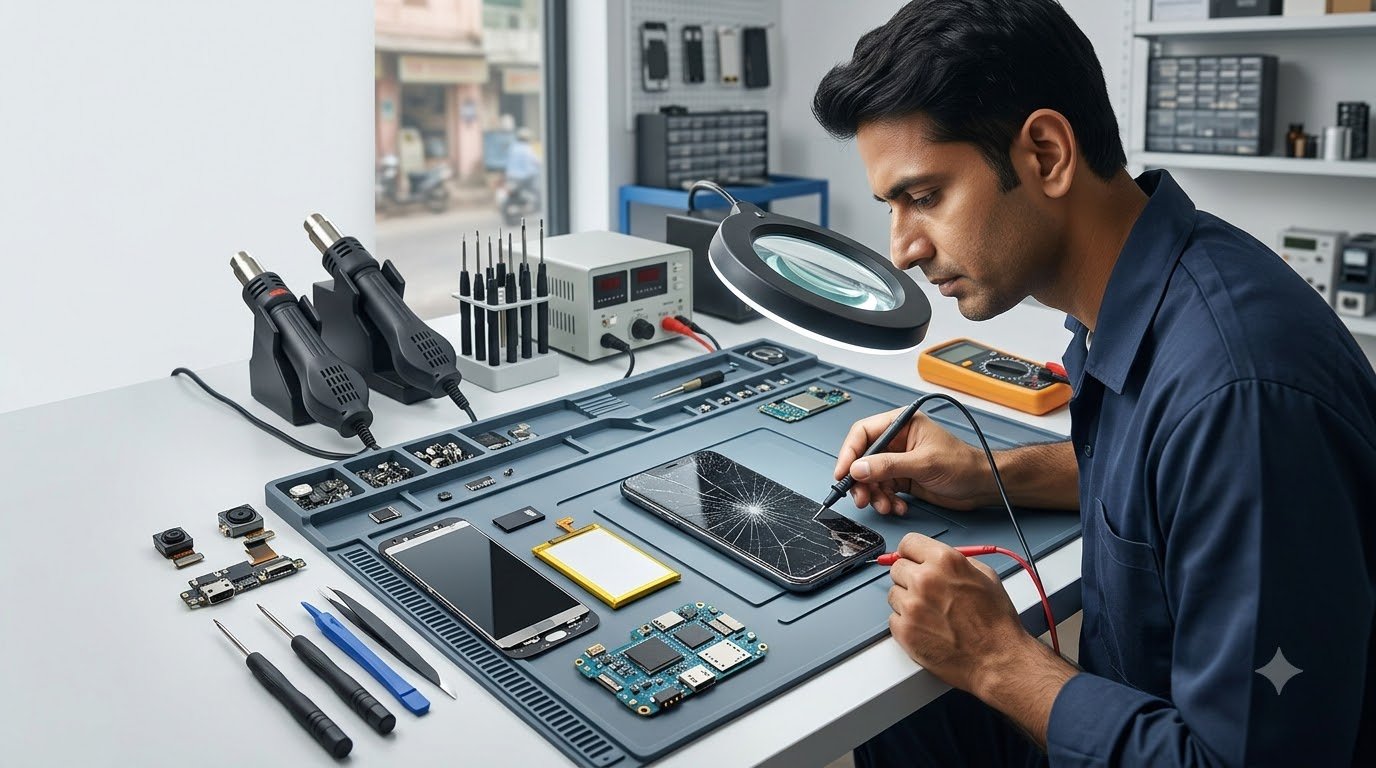
Mobile Repairing Shop
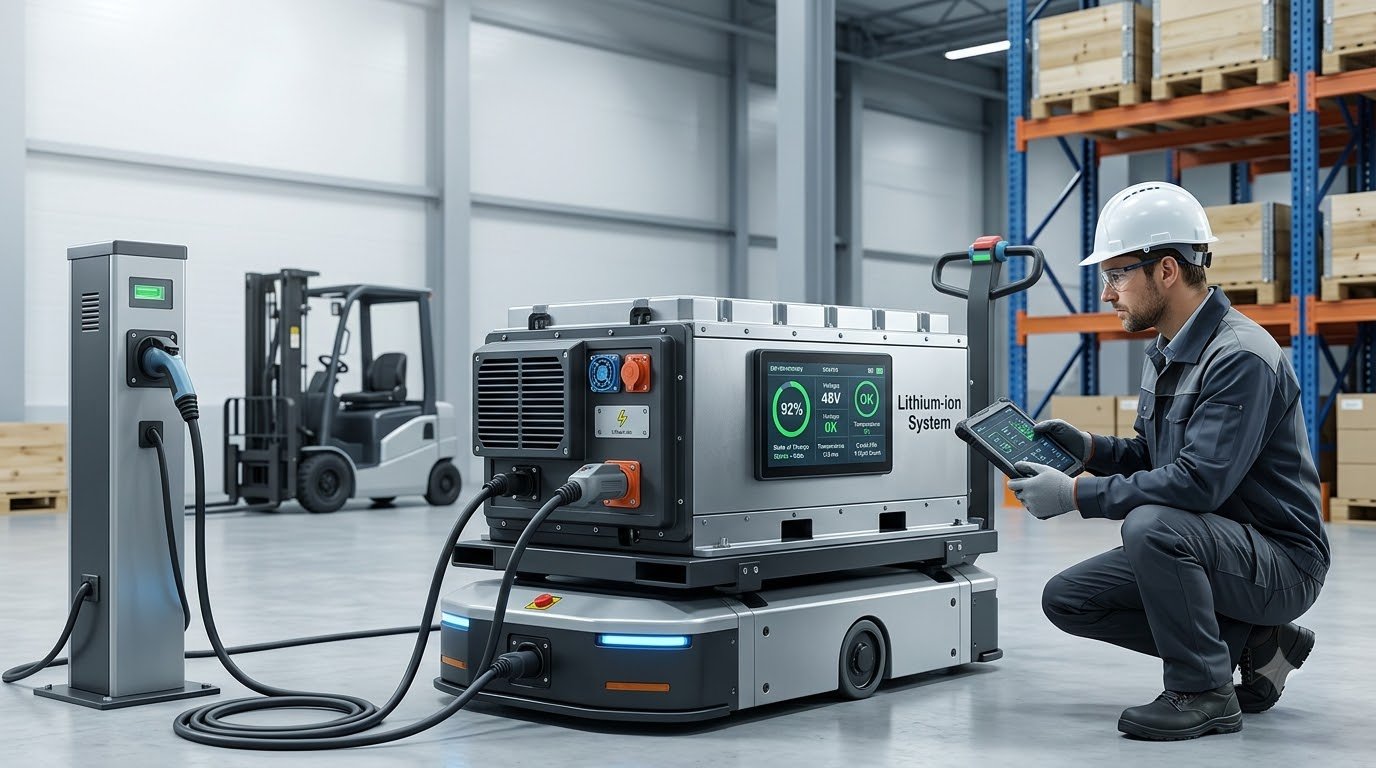
HCB lithium battery
Lithium batteries are increasingly used in factories, warehouses, renewable energy systems, industrial vehicles, backup…
Read More
Uncategorized
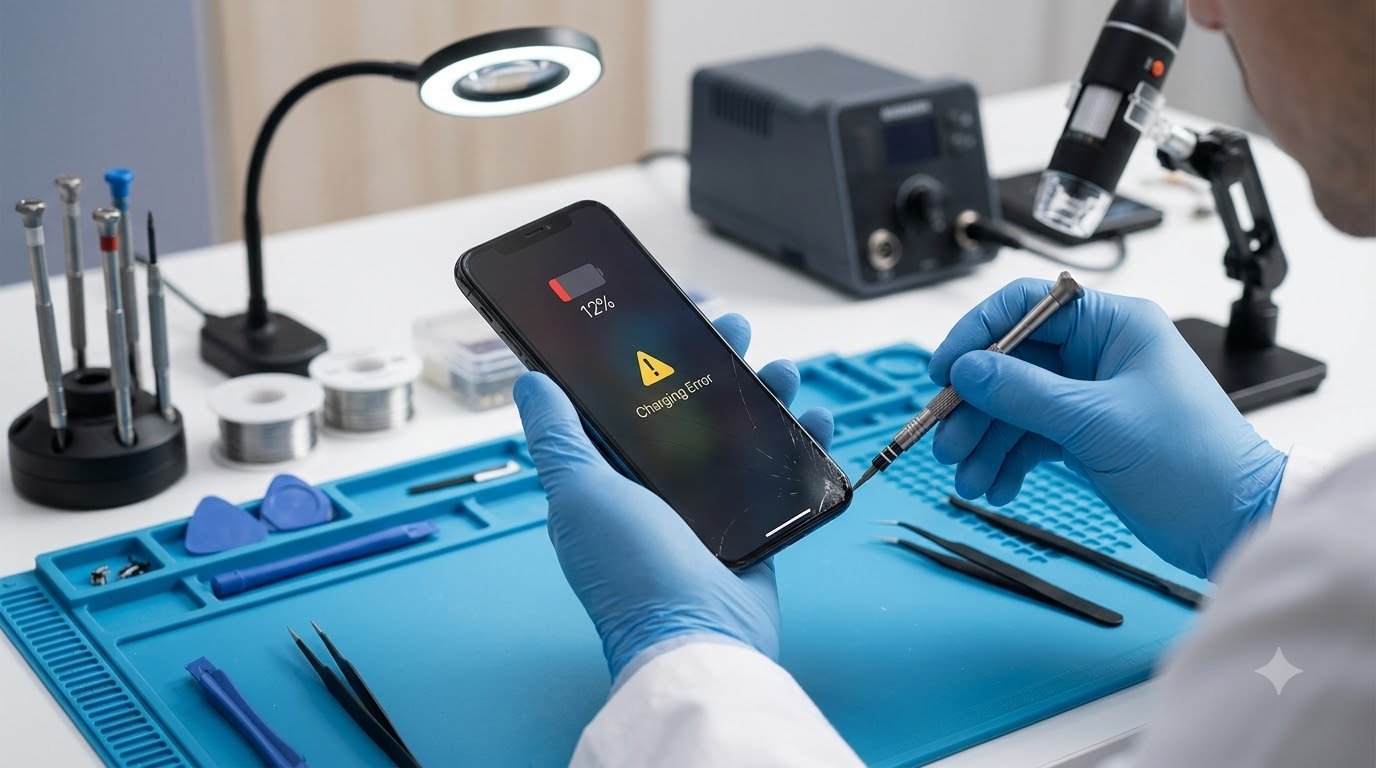
Not every smartphone problem means you need to visit a repair shop. Many common…
Read More