A smartphone battery plays a crucial role in the performance and reliability of your…
Read More

Battery Replacement Service
Smartphone Performance Degradation: Causes, Diagnostics and Ways to Restore Speed
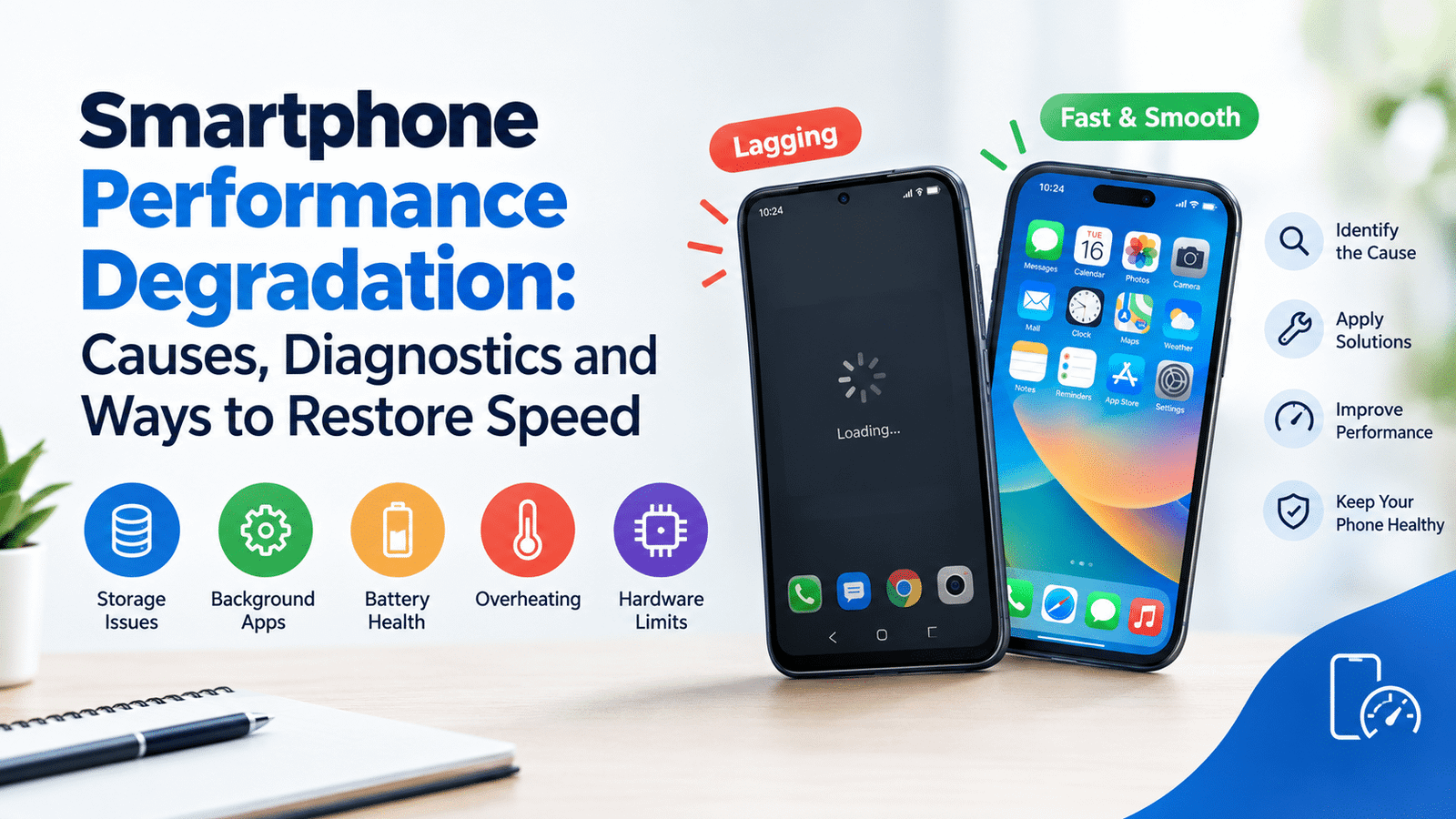
A smartphone that once opened apps instantly may gradually start responding more slowly, freezing during everyday tasks, or taking longer to load websites and process photos. This gradual decline, known as smartphone performance degradation, can affect both Android smartphones and iPhones. However, a slow device does not necessarily mean its hardware is failing or that it is time to buy a replacement.
Understanding why is my phone getting slower requires looking at several possible causes, including insufficient storage, resource-intensive applications, software bugs, battery aging, overheating, and hardware limitations. Sometimes, the problem is even related to a weak internet connection rather than the smartphone itself.
The most effective approach is to identify the cause before making changes. Installing random cleaner applications, repeatedly closing background apps, or performing a factory reset without investigating the problem may waste time without improving responsiveness.
This guide explains the common causes of slow smartphone performance, practical diagnostic methods, and solutions that can help restore speed while protecting your data and device.
What Is Smartphone Performance Degradation?
Smartphone performance degradation refers to a reduction in a device’s responsiveness, processing efficiency, or ability to handle everyday tasks smoothly. It may develop gradually as applications become more demanding, storage fills up, software problems appear, or internal components age.
Common symptoms include:
-
Apps taking longer to open or load.
-
Delayed touchscreen responses and keyboard input.
-
Lag while switching between applications.
-
Stuttering animations and scrolling.
-
Apps freezing, crashing, or closing unexpectedly.
-
Slower camera processing and file transfers.
-
Reduced responsiveness during gaming or multitasking.
-
Temporary slowdowns when the device becomes hot.
These symptoms do not all have the same cause. For example, a smartphone with nearly full storage may struggle with updates and downloads, while a device that becomes sluggish only during gaming may be experiencing thermal throttling.
Similarly, an application that freezes while loading online content may be affected by network problems rather than insufficient processing power.
Identifying the conditions under which the problem occurs is therefore the first step toward effective mobile performance troubleshooting.
Common Causes of Smartphone Performance Degradation
1. Insufficient Storage Space
Storage availability can influence how smoothly a smartphone operates. Operating systems and applications need room for temporary files, downloaded updates, cached information, and other routine operations. When storage becomes critically low, certain tasks may fail or become less reliable.
A phone with limited free space may also struggle to install application updates, save photographs, download documents, or complete system updates.
To investigate phone storage optimization, open the built-in storage settings and identify what occupies the most space. Large videos, duplicate photographs, offline downloads, and applications that are no longer used are common places to start.
Remove unnecessary files only after checking that important information is backed up. On supported Android devices, built-in storage-management tools can help identify removable content. iPhones provide storage recommendations and application storage details through Settings.
There is no single free-storage percentage that guarantees optimal performance across every device. The important consideration is whether the remaining space is sufficient for normal system and application operations.
2. Resource-Intensive Applications and Background Processes
Applications consume different amounts of processing power, memory, battery energy, and network bandwidth. Video editors, modern games, navigation applications, and social media platforms may require considerable resources, particularly when several demanding tasks run together.
An Android phone running slow may also have applications performing frequent synchronisation, processing media, or downloading content in the background.
However, closing every application manually is not a reliable solution. Android and iOS manage background applications automatically, suspending or limiting activity when appropriate. Repeatedly force-closing applications can sometimes increase resource consumption because they must reload when reopened.
Instead, review battery usage and application settings to identify programs associated with unusually high resource consumption, repeated crashes, or unnecessary background activity.
Restrict background activity selectively when the operating system offers that option. Avoid disabling essential system processes or notifications without understanding their purpose.
3. Outdated Software or Application Bugs
Software problems can produce noticeable slowdowns even when a smartphone has sufficient storage and capable hardware.
An outdated application may contain compatibility issues, while a software bug can cause repeated crashes, excessive background processing, or unresponsive interfaces. Occasionally, a recently installed update can introduce a problem on a particular device.
Check for official operating system and application updates. Developers frequently release updates that address bugs, improve compatibility, and resolve security issues.
Nevertheless, an update does not guarantee faster performance. Newer software may also introduce demanding features that older hardware handles less efficiently. Some devices can experience temporary additional activity after an update while applications and system resources are being reorganised.
If slowdowns begin immediately after installing a particular application or update, record when the problem started and whether it affects other applications. This information can help distinguish an application-specific issue from a wider operating system problem.
4. Battery Aging and Power Management
Lithium-ion batteries gradually lose their ability to hold a charge as they age and undergo repeated charging cycles. Their condition can affect how reliably a smartphone operates under demanding conditions.
Smartphone battery performance is particularly relevant when a device has unexpected shutdowns, reduced battery endurance, or inconsistent behaviour during intensive tasks.
Some smartphones use power-management mechanisms to maintain stable operation when battery condition or available power becomes a concern. The exact behaviour depends on the device, operating system, and manufacturer.
On supported iPhones, Battery settings provide battery health information and details about certain performance-management features. Android manufacturers offer different battery information and diagnostic options depending on the model.
An older battery does not automatically explain every slowdown. If the battery is significantly degraded and a qualified assessment identifies it as a contributing factor, replacement may improve reliability. However, replacing a healthy battery will not fix software bugs, inadequate memory, or limitations caused by demanding applications.
5. Overheating and Thermal Throttling
Smartphones generate heat during gaming, video recording, navigation, charging, and other intensive activities. When internal temperatures exceed appropriate operating limits, the device may reduce processor speed to control heat and protect its components.
This behaviour is called thermal throttling.
The combination of phone overheating and lagging is especially noticeable during prolonged gaming, video editing, outdoor use in direct sunlight, or demanding tasks while charging.
If the device becomes hot and performance drops, stop intensive activities, move it away from direct sunlight, and disconnect the charger if it is unusually hot. Allow it to cool naturally in a safe, shaded environment.
Avoid refrigerators, ice packs, or other extreme cooling methods, which can introduce condensation or temperature-related damage.
If overheating repeatedly occurs during light use, or the phone displays temperature warnings or shuts down unexpectedly, seek professional assistance rather than assuming the problem is normal.
6. Aging Hardware and Increasing Application Requirements
Smartphone processors, memory, and graphics hardware have different capabilities. As applications introduce more complex interfaces, advanced camera features, artificial intelligence functions, and demanding graphics, older devices may find certain tasks increasingly difficult.
A phone with limited RAM may struggle when switching between several demanding applications. Older graphics hardware may deliver inconsistent frame rates in modern games, even when basic functions remain reliable.
This does not mean every older smartphone becomes unsuitable for everyday use. Messaging, calls, reading, and lightweight browsing may continue to work well.
When investigating how to make an old phone faster, consider whether the slowdown affects all activities or only specific demanding applications. If simple tasks remain responsive but newer games consistently lag, hardware limitations may be more likely than a general software problem.
7. Network Problems Mistaken for Slow Performance
Not every slow smartphone experience originates inside the device.
Weak Wi-Fi, poor mobile reception, network congestion, DNS problems, or an overloaded remote server can make websites and online applications respond slowly. An application may appear frozen while waiting for information from the internet.
Test several websites or online applications and compare their behaviour on a different network. If offline applications operate normally while online services remain slow, investigate the connection before changing system settings.
A slow internet connection generally does not explain persistent touchscreen delays, sluggish offline menus, or repeated local application crashes.
Separating network problems from device problems prevents unnecessary troubleshooting and helps identify the correct solution.
How to Diagnose Smartphone Performance Problems
Effective smartphone performance diagnostics begins with observing the problem rather than immediately changing several settings.
Check Storage, Memory, and Battery Usage
Start with the information provided by the smartphone’s operating system.
On Android, open Settings and review Storage, Battery, and available application information. Menu names vary by manufacturer and software version. Some devices provide additional diagnostics, while others expose limited processor or memory details.
On an iPhone, review Settings under General and iPhone Storage to identify storage usage. The Battery section can help reveal applications associated with unusually high energy consumption and provide battery health information on supported models.
Record whether storage is nearly full, a particular application consumes excessive battery, or the device behaves differently when disconnected from its charger.
Battery consumption is not a direct measurement of processor usage, so use it as a clue rather than definitive proof.
Monitor Temperature and Performance Patterns
Notice when slowdowns occur. Does the phone become sluggish during charging, gaming, video recording, or after several applications have been open?
If performance declines as the device heats up and improves after cooling, temperature-related throttling may be involved.
If the device remains slow even when cool and idle, investigate storage, software, and application behaviour instead.
Keeping track of these patterns helps narrow the possible causes without unnecessary resets or repairs.
Identify Problematic Applications
Look for applications that frequently crash, consume unusually high battery power, or show excessive background activity.
If the problem began after installing an application, temporarily uninstalling that application may help establish whether it is responsible. Back up any important app-specific data first.
Android Safe Mode, where supported, starts the device with downloaded applications disabled. If the problem disappears in Safe Mode, a downloaded application may be contributing to the slowdown. The exact method for entering Safe Mode varies by manufacturer.
iPhone does not provide an equivalent standard Safe Mode for routine consumer troubleshooting. Instead, review application behaviour, install updates, and remove or reinstall a suspected application when appropriate.
Determine Whether the Problem Is Software- or Hardware-Related
Consider recent changes, including software updates, new applications, physical damage, liquid exposure, battery deterioration, or unusual charging behaviour.
A problem that begins after installing one application may be software-related. Persistent freezing following physical damage, repeated unexpected shutdowns, or unusual heat during light use may require a hardware assessment.
If basic checks do not identify the cause, professional diagnostics can help determine whether the issue involves the battery, charging system, internal components, or operating system.
How to Improve Smartphone Speed and Responsiveness
Once the likely cause is understood, choose a solution that addresses that specific problem. These practical steps can help improve phone performance without unnecessarily erasing data or changing important settings.
1. Free Up Storage Space
Remove unused applications, unnecessary downloads, duplicate files, and unwanted videos after verifying that important information is backed up.
Review the built-in storage recommendations before deleting large amounts of data. Some applications store documents or media locally, so deleting their data may remove information that cannot easily be recovered.
For applications that offer a cache-clearing option, understand the difference between cached files and stored application data. Clearing a cache may remove temporary files, while clearing all application data can reset settings or delete locally stored content.
The objective of how to speed up a smartphone through storage management is to maintain sufficient working space and remove unnecessary content, not to delete everything possible.
2. Update the Operating System and Applications
Install official updates when they are compatible with the device and appropriate for your situation.
Updates can resolve known bugs, improve application compatibility, and address security vulnerabilities. Before a major update, back up important information, check available storage, and ensure the device has adequate charge.
If performance deteriorates immediately after an update, allow any temporary background activity to settle and check for subsequent application updates. Persistent problems may require manufacturer-specific troubleshooting.
3. Reduce Unnecessary Background Activity
Review applications that do not need continuous background access. Depending on the device, you may be able to limit background refresh, automatic synchronisation, location access, or unrestricted battery usage.
Apply these changes selectively. Disabling background activity for an essential messaging application, for example, may delay notifications.
Avoid unverified task killers and booster applications that promise dramatic improvements by repeatedly terminating processes. Modern operating systems already manage resources, and additional utilities can introduce unnecessary activity or privacy risks.
4. Restart the Smartphone
A normal restart can resolve temporary problems caused by a stuck process, an application that has stopped responding, or a temporary system malfunction.
Save your work, restart the device using its standard controls, and check whether performance improves afterward.
If the phone becomes slow again after a short period, investigate the underlying cause. Repeated restarts may provide temporary relief but will not repair defective hardware, restore a degraded battery, or correct a recurring software bug.
5. Manage Heat and Charging Conditions
Avoid prolonged demanding activities when the device is already hot. Reduce intensive gaming or recording, move away from direct sunlight, and use compatible charging accessories from reputable sources.
If the device becomes unusually hot during charging, disconnect it when safe to do so and allow it to cool naturally. Persistent overheating requires investigation.
Managing temperature can help the smartphone maintain its normal operating performance and reduce unnecessary thermal stress.
6. Review Animations and Display Effects
Some devices allow users to reduce animation effects or visual transitions. These adjustments can make menus and screen transitions feel quicker, especially on older hardware.
Certain Android devices provide animation controls through Developer Options, although the settings and availability vary. On supported iPhones, accessibility settings offer options that reduce some motion effects.
These changes affect visual presentation rather than increasing the processor’s actual capacity. They may improve perceived responsiveness but will not fix a failing battery, insufficient storage, or persistent application crashes.
7. Reset Settings or Consider a Factory Reset
If the problem continues after other troubleshooting steps, resetting selected settings may help resolve configuration-related issues. Understand which settings will be changed before proceeding, as network configurations, permissions, or other preferences may need to be restored.
A factory reset should be a last-resort software troubleshooting option.
Before resetting, create and verify a backup, confirm that you know the relevant account credentials, and understand how to restore your information. A factory reset erases local data and can create additional problems if important files have not been backed up.
If performance remains poor after a clean setup, hardware limitations or a defective component may be involved. A factory reset cannot repair physical damage or restore the original capacity of an aged battery.
Android vs iPhone Performance Troubleshooting
Android and iPhone offer similar basic troubleshooting options, but their diagnostic tools and settings differ.
On Android, users can typically review storage, battery usage, application permissions, and background activity. Some manufacturers provide device-care tools or hardware diagnostics, while Safe Mode can help identify problems associated with downloaded applications.
On iPhone, iPhone Storage provides information about application and file usage, while Battery settings help users investigate energy consumption and supported battery health information. Updating iOS and applications, restarting the device, and reviewing recently installed applications are useful starting points.
Both platforms benefit from maintaining sufficient storage, managing heat, and installing appropriate official updates.
Neither platform exposes every technical measurement on every model. Menu names, diagnostic options, and available features depend on the operating system version and device manufacturer.
The most useful approach is to follow the diagnostic options supported by the specific device rather than applying instructions intended for another model.
Common Mistakes That Can Make a Slow Phone Worse
Random changes can complicate troubleshooting and introduce new problems.
Installing unknown cleaner or booster applications may create unnecessary background activity, expose personal information, or encourage unsafe permissions. Similarly, unofficial firmware and poorly understood system modifications can cause instability or interfere with security protections.
Deleting files without a backup can permanently remove important photographs, documents, or application data. Performing a factory reset before investigating the likely cause may erase information without resolving the problem.
Another common mistake is disabling important system services simply because they appear to consume resources. This can interfere with notifications, synchronisation, or essential functions.
Finally, ignoring persistent overheating, unexpected shutdowns, or battery warnings can delay necessary repairs.
Make one meaningful change at a time, observe the result, and keep a record of recurring symptoms. This measured approach makes it easier to determine whether a solution actually helped.
When Should You Consider Professional Repair or Replacement?
Professional assessment is appropriate when the smartphone continues freezing, shuts down unexpectedly, becomes unusually hot during light use, or performs poorly despite reasonable software troubleshooting.
Physical damage, liquid exposure, charging faults, and signs of battery deterioration also warrant attention. A swollen battery is particularly serious: stop using and charging the device, do not press or puncture the battery, and arrange qualified service.
Before deciding between repair and replacement, consider the device’s age, battery condition, availability of software updates, repair cost, and expected remaining useful life.
A battery replacement may be worthwhile when battery deterioration is confirmed and the rest of the device remains suitable. A charging-system or other component repair may also be reasonable if diagnostics identify a specific fault.
Replacement may make more sense when several components are failing, the device no longer receives essential software support, or its hardware cannot handle the applications you need.
For persistent problems that require component-level investigation, a qualified smartphone technician can assess the device before you commit to an expensive repair or purchase.
How to Maintain Smartphone Performance Over Time
Good maintenance cannot eliminate normal hardware aging, but it can help prevent avoidable performance problems.
Keep reasonable free storage space available and periodically remove unnecessary files. Install official software and application updates when appropriate, and review applications that repeatedly consume excessive resources.
Avoid prolonged exposure to extreme temperatures, use compatible charging accessories, and maintain regular backups of important information. Check battery condition when supported by the device and pay attention to unusual heat, sudden shutdowns, or recurring crashes.
It is also helpful to match application demands to the phone’s capabilities. Reducing demanding graphical settings in games or avoiding unnecessary multitasking can make an older device more usable without compromising essential functions.
Most importantly, investigate persistent changes in behaviour instead of assuming that every slowdown is caused by age. Appropriate maintenance, accurate diagnosis, and timely repairs can extend a smartphone’s useful life.
Conclusion
Smartphone performance degradation can result from insufficient storage, demanding applications, software bugs, battery aging, overheating, network problems, or hardware limitations. Because these causes can produce similar symptoms, the best solution depends on identifying what is actually happening.
Begin with storage, battery usage, software updates, application behaviour, and temperature patterns. Apply targeted fixes, restart the device when appropriate, and avoid unnecessary resets or unverified cleaner applications.
If the smartphone continues freezing, overheating, or shutting down unexpectedly, seek professional diagnostics before deciding whether repair or replacement is appropriate.
At Galaxmial, this smartphone technology guide is intended to help readers understand common device problems, make informed troubleshooting decisions, and maintain reliable performance for as long as their devices remain suitable for their needs.
Battery Replacement Service
Android VS IPhone repair
Introduction A damaged screen, a battery that drains too quickly, a faulty charging port,…
Read More
Mobile Repairing Shop
Introduction A smartphone that restarts unexpectedly can interrupt important calls, close applications, disrupt online…
Read More