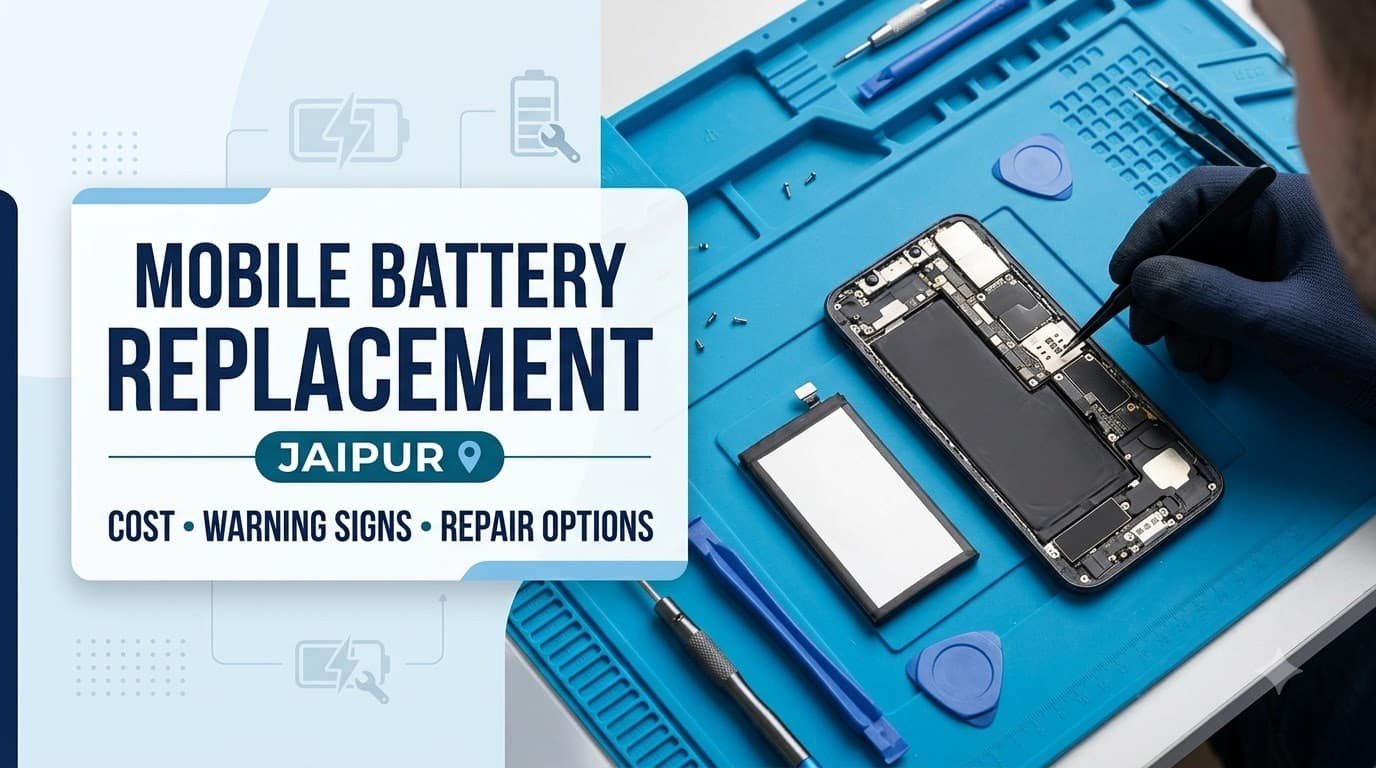
A smartphone battery plays a crucial role in the performance and reliability of your…
Read More

Introduction
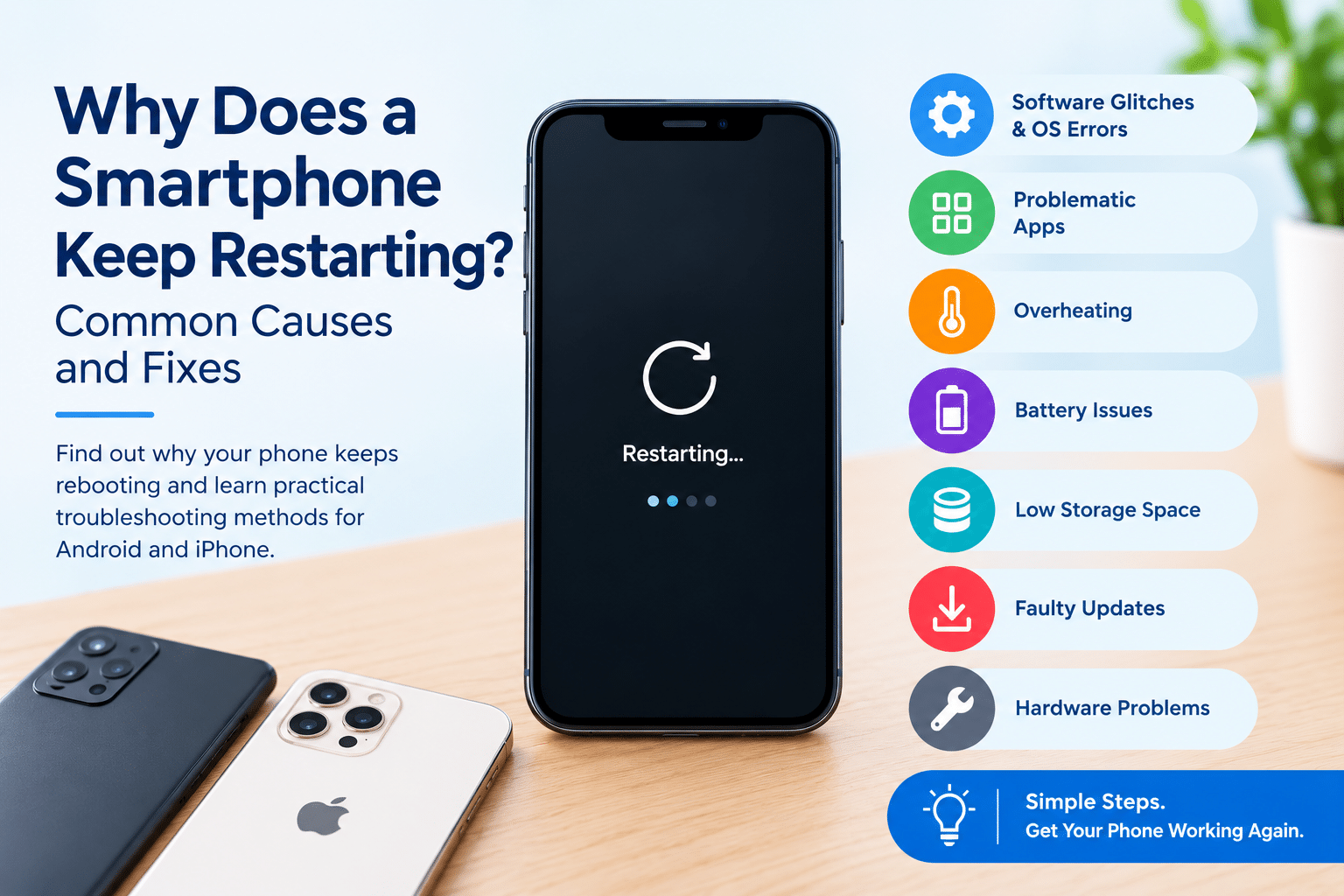
A smartphone that restarts unexpectedly can interrupt important calls, close applications, disrupt online payments, or make it difficult to access essential information. If your phone keeps rebooting while browsing, gaming, charging, or simply sitting idle, identifying the underlying cause is the first step toward fixing the problem.
If you are wondering, why does my smartphone keep restarting, the answer could involve several factors. Common causes include software glitches, incompatible applications, overheating, battery deterioration, insufficient storage, failed updates, or damaged internal components. However, repeated restarts do not automatically mean that your phone has a faulty battery or requires an expensive repair.
This guide explains how to identify common warning signs, troubleshoot Android phones and iPhones safely, and recognize when professional inspection may be necessary.
Why Does My Smartphone Keep Restarting?
A smartphone relies on its operating system, battery, processor, memory, and other components working together. If a critical process fails or the device cannot maintain stable power, it may restart unexpectedly.
Here are the most common reasons.
1. Software Glitches and Operating System Errors
Temporary system errors can cause applications to crash or the phone to restart. These problems may occur after an update, an unexpected shutdown, or prolonged device use. Installing official software updates can resolve known stability issues.
2. Buggy or Incompatible Applications
An application may contain a bug, consume excessive system resources, or conflict with another application. If your phone restarts repeatedly after installing or updating a particular app, that app is worth investigating.
3. Overheating
High temperatures can affect device performance and trigger protective measures. Gaming, video recording, navigation, direct sunlight, and demanding tasks while charging can increase heat. An overheating phone restarting repeatedly should be allowed to cool before further troubleshooting.
4. Battery Deterioration or Power Problems
An aging or damaged battery may struggle to supply consistent power, particularly when the processor demands more energy. This can cause sudden shutdowns or restarts, especially when the battery level is low.
5. Insufficient Storage
Very low available storage can contribute to performance issues, app crashes, and system instability. Although storage shortages do not always cause repeated restarts, freeing space is a useful troubleshooting step.
6. Faulty Updates or Corrupted System Files
An interrupted update or a software bug can leave a device unstable. If the phone restarting after an update becomes a recurring problem, check for a newer official update and follow the manufacturer’s recovery instructions.
7. Damaged Buttons, Charging Ports, or Internal Components
A stuck power button, damaged charging port, liquid exposure, or impact damage can interfere with normal operation. Internal faults involving power-management circuitry or the motherboard may also cause repeated restarts. These problems generally require professional diagnosis.
Important: The same symptom can have several causes. Look at when the restarts occur and whether the problem began after a particular change before deciding on a solution.
Common Signs That Help Identify the Problem
Observing the circumstances surrounding each restart can help narrow down the possible cause.
Phone Restarts While Using Certain Apps
If your phone restarts when opening a particular application, the app may be unstable or placing heavy demands on the device. Update it through the official app store. If the issue began after installation or an update, consider removing the app temporarily.
If the phone also restarts when idle or using unrelated apps, investigate system software, battery health, and hardware rather than blaming one application.
Phone Restarts While Charging
A phone that restarts during charging may be overheating, experiencing a faulty cable or adapter, or suffering from a charging-port or battery problem.
Try a reputable, compatible charging accessory and inspect the cable and port for visible damage. Do not insert metal objects into the port. If the device becomes unusually hot, disconnect it from the charger if safe and let it cool naturally.
Phone Restarts When the Battery Is Low
A worn battery may have difficulty maintaining stable voltage under load. If the phone shuts down or restarts at low battery percentages, check its battery-health information if available.
Repeated shutdowns at different battery levels can also indicate software or hardware faults, so battery replacement should not be assumed without further diagnosis.
Phone Restarts After a Software Update
Some devices perform background tasks after an update, which may temporarily affect performance or battery usage. Allow the phone to finish processing while keeping it at a safe temperature and ensuring adequate battery power.
If repeated restarts continue, install any subsequent official stability update when available and investigate recently updated apps. Persistent restart loops require additional troubleshooting.
How to Fix a Smartphone That Keeps Restarting
Follow these methods in order, starting with the least disruptive options.
1. Restart the Phone Manually
If the phone is responsive, perform a normal restart using its power menu. This can clear temporary software problems.
If the phone is already trapped in a restart loop, a force restart may help. The button combination differs between models, so consult the official instructions for your exact device. Avoid repeatedly pressing random button combinations.
2. Check for Overheating
Close demanding applications and move the phone away from direct sunlight or other heat sources. Disconnect it from charging if it becomes unusually hot, provided doing so is safe. Remove a case if it is trapping heat and allow the device to cool at room temperature.
Never place a phone in a refrigerator or freezer, use ice, or apply extreme cooling methods. Rapid temperature changes can cause condensation and additional damage.
If the phone repeatedly becomes dangerously hot during light use, stop using it and seek qualified assistance.
3. Update the Operating System
Software updates often include bug fixes, security improvements, and stability enhancements.
On Android, open Settings and look for System Update, Software Update, or a similarly named option. The exact menu depends on the manufacturer.
On an iPhone, open Settings → General → Software Update.
Back up important data before updating when practical. Use a reliable network and sufficient battery power, or follow the manufacturer’s charging instructions. If the device cannot remain powered on long enough to complete an update, seek model-specific support rather than repeatedly attempting it.
4. Update or Remove Problematic Apps
Open Google Play Store or Apple’s App Store and install available updates for your applications. If the restart issue started after installing a particular app, uninstalling it temporarily may help establish whether it is responsible.
Android users: Safe Mode can help identify whether downloaded apps are contributing to the problem. It temporarily disables downloaded apps, although the activation procedure varies by manufacturer and model. If the phone becomes stable in Safe Mode, investigate recently installed applications.
Safe Mode is not a standard iPhone troubleshooting feature. On an iPhone, review recently installed apps, update them, and remove suspicious or unstable apps as appropriate.
5. Free Up Storage Space
Check your available storage in the device settings. If storage is nearly full, remove unnecessary downloads, delete unwanted files, and clear application caches where the device provides that option.
Transfer important photos and videos to a secure backup location before deleting local copies. On Android, clearing an app’s cache is different from clearing its data; clearing data can remove settings and locally stored information.
On iPhone, review Settings → General → iPhone Storage to identify applications and files occupying substantial space.
After freeing space, check whether the restart problem improves. If it continues, move to the next diagnostic step.
6. Check Battery Health and Charging Accessories
Battery condition can affect power stability, particularly on older devices.
On supported iPhones, open Settings → Battery → Battery Health or the equivalent option shown by your iOS version. On Android, check battery information in Settings or use manufacturer-provided diagnostics if available.
Inspect the charging cable and adapter for damage. Test a reputable, compatible alternative if the existing accessories appear faulty. Never use damaged charging equipment.
Do not open the phone or attempt to repair its battery yourself. If the battery is swollen, the screen or back cover is lifting, or the device shows signs of serious overheating, stop using and charging it and arrange qualified repair assistance.
7. Reset Settings or Consider a Factory Reset
If simpler troubleshooting does not work, resetting certain settings may help. Depending on the device, options may include resetting network settings or restoring system settings to their defaults. Read the confirmation screen carefully because the effects vary.
A factory reset should be a last-resort software troubleshooting step. It removes local data and settings, and the exact process differs between devices.
Before proceeding:
- Back up important photos, contacts, documents, and other files.
- Verify your account credentials and recovery options.
- Understand which data is stored locally and which is backed up.
- Follow the official reset instructions for your device.
After the reset, test the phone before reinstalling all applications. If it still restarts on a clean system, a hardware fault becomes more concerning. A factory reset is unlikely to repair physical damage and may complicate data recovery if files were not backed up.
Android Phone vs iPhone: Troubleshooting Differences
Both platforms can experience software crashes, overheating, battery problems, and hardware faults, but their diagnostic options differ.
| Troubleshooting area | Android | iPhone |
|---|---|---|
| App diagnosis | Safe Mode is available on many models | Review and remove problematic apps |
| Battery checks | Settings or manufacturer diagnostics, depending on model | Battery Health options on supported versions |
| Software updates | Settings → Software Update or equivalent | Settings → General → Software Update |
| Storage checks | Settings → Storage or equivalent | Settings → General → iPhone Storage |
| Force restart | Combination varies by manufacturer and model | Combination varies by iPhone model |
| Hardware diagnosis | Manufacturer or qualified repair diagnostics | Apple or qualified repair diagnostics |
For either platform, use official support instructions for your exact model. Avoid unofficial firmware downloads, unverified repair utilities, and procedures that could erase data without warning.
When Should You Visit a Smartphone Repair Professional?
Professional inspection is appropriate when the phone keeps rebooting despite basic troubleshooting or displays signs of physical damage.
Seek qualified assistance if:
- The phone restarts immediately after powering on.
- It remains trapped in a restart loop.
- It has suffered liquid exposure or a significant impact.
- The battery appears swollen or the casing is separating.
- It becomes dangerously hot or emits an unusual smell.
- The device repeatedly fails to complete an official update.
- The charging port, power button, or other components appear damaged.
- Restarts continue after appropriate software troubleshooting.
If the battery is swollen or the device shows serious overheating, stop using and charging it. Do not press the casing closed, puncture the battery, or attempt to open the phone.
For persistent problems, a qualified technician can inspect the battery, charging system, power button, and internal components to determine whether the cause is hardware-related or software-related. Back up your data first if the phone is stable enough to do so safely.
How to Prevent Smartphone Restart Problems
A few regular maintenance habits can reduce the likelihood of avoidable software and power issues.
- Install official operating system and app updates.
- Download applications from trusted sources.
- Keep a reasonable amount of storage space available.
- Use reputable, compatible charging cables and adapters.
- Avoid prolonged exposure to direct sunlight and excessive heat.
- Protect the device from liquid and physical damage.
- Back up important information regularly.
- Pay attention to recurring crashes, battery warnings, and unexpected shutdowns.
- Remove applications that consistently cause problems.
- Arrange inspection when symptoms persist instead of repeatedly forcing restarts.
Prevention cannot eliminate every hardware failure, but regular updates, sensible charging practices, and reliable backups make smartphone problems easier to manage.
Conclusion
If you are asking, why does my smartphone keep restarting, the cause may be a software glitch, an unstable application, overheating, insufficient storage, battery deterioration, or damaged hardware. The most effective approach is to identify when the problem occurs and troubleshoot methodically.
Start by checking the phone’s temperature, available storage, recent applications, official software updates, and battery condition. Consider a settings reset or factory reset only after simpler methods fail and important data is backed up.
If the phone continues restarting, becomes dangerously hot, or shows signs of physical damage, professional diagnosis is the safer next step. This guide from Galaxmial is intended to help smartphone users understand common restart problems and choose sensible troubleshooting steps before considering repair.
Battery Replacement Service
Battery Replacement Service
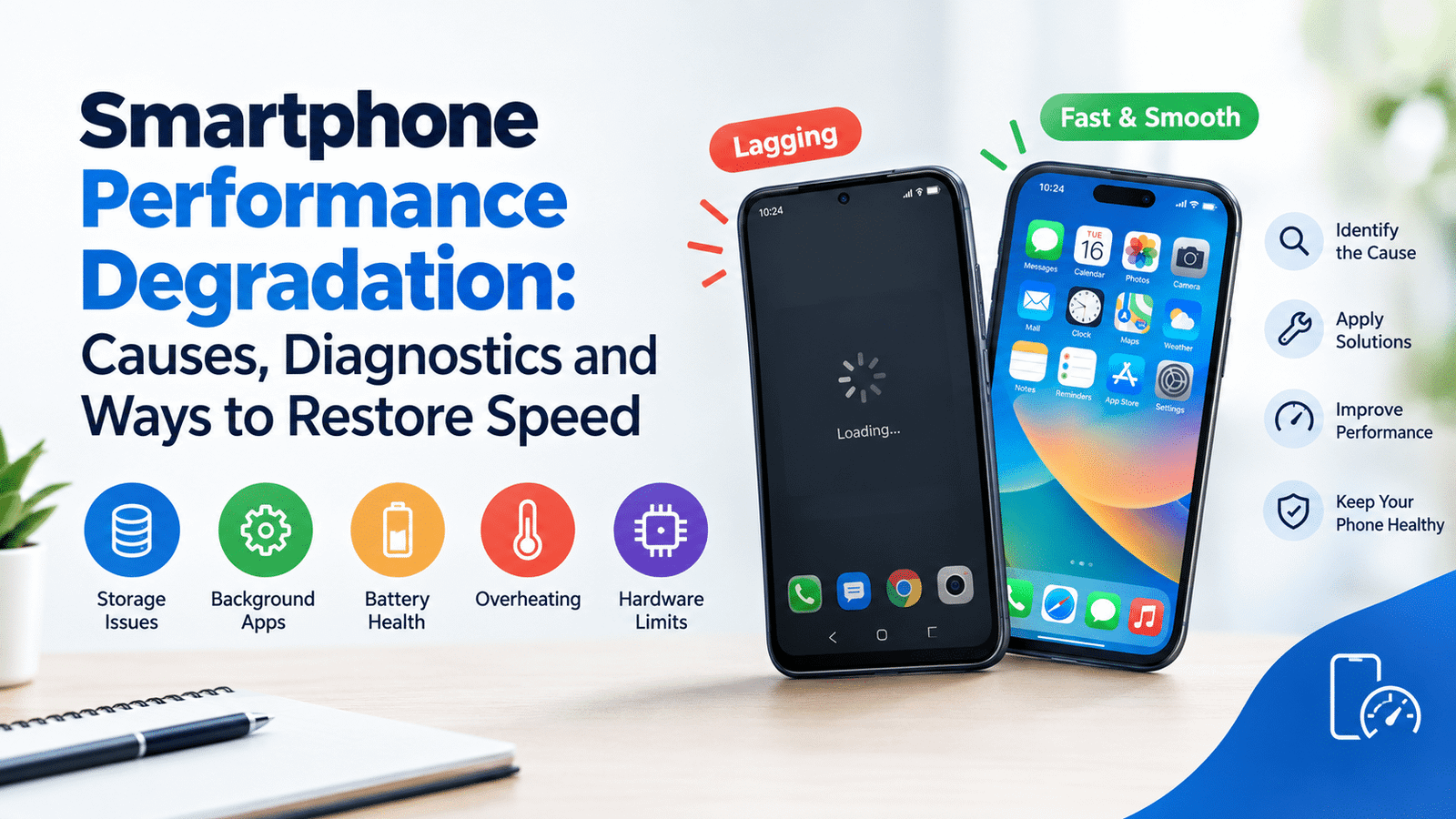
A smartphone that once opened apps instantly may gradually start responding more slowly,…
Read More
Android VS IPhone repair
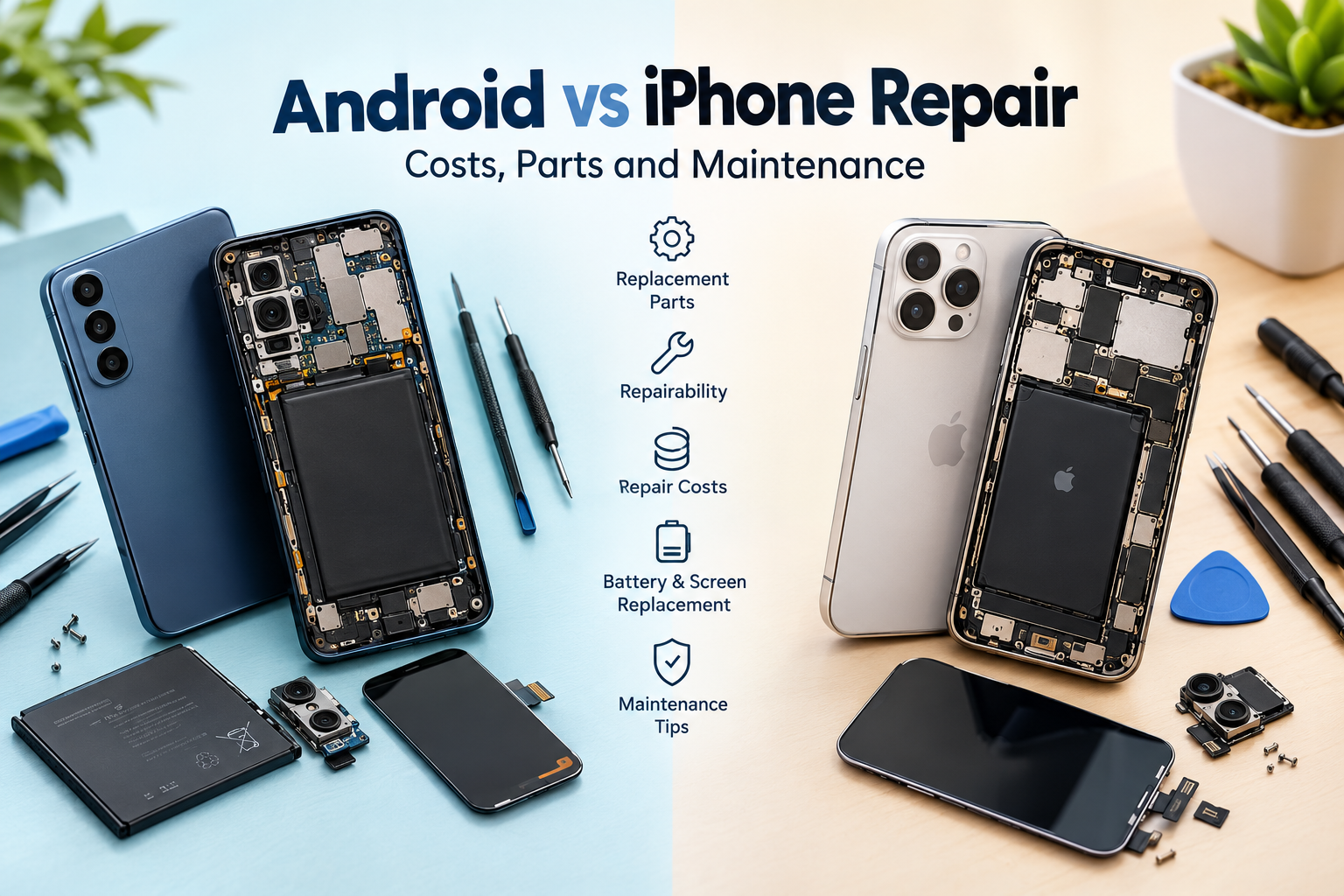
Introduction A damaged screen, a battery that drains too quickly, a faulty charging port,…
Read More